
Microsoft Teams
Connect Revefi to your Microsoft Teams to receive alerts in any channel within your workspace. This guide will walk you through the process of setting up Microsoft Teams webhook for Revefi.
Revefi supports Microsoft Teams via Teams webflow and Microsoft 365 Connectors. You will need to create incoming webhook for either of these two connectors. Revefi recommends using Teams webflow as Microsoft 365 Connectors have been deprecated.
Creating an Teams Connector
Teams Webflow
To create a teams webflow webhook, you will need to create flow on Power Automate.
- Sign-in into Microsoft Power Automate
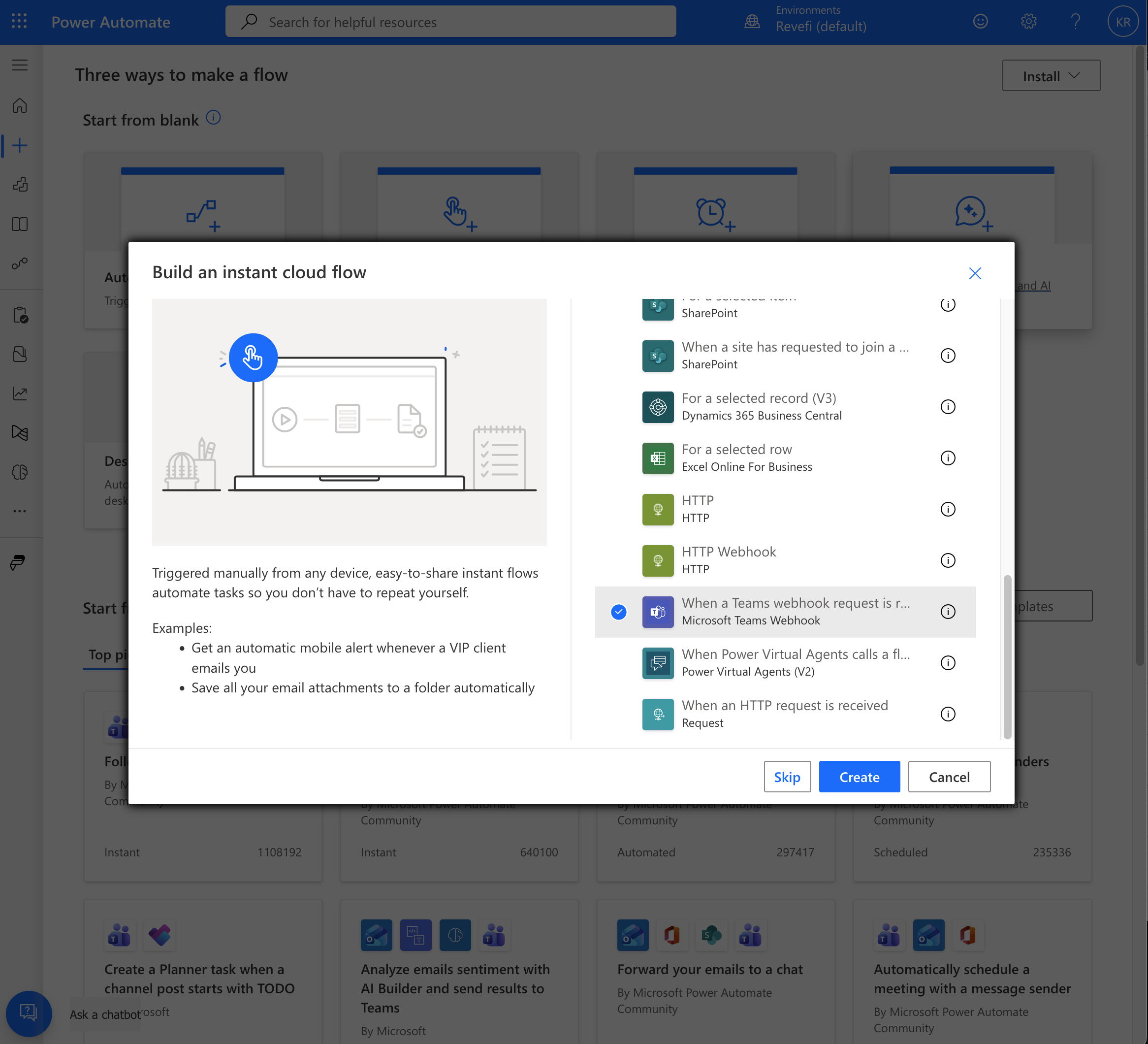
- On the left menu, click on "Create" button and then select "Instance cloud flow"
- Select "When a Teams webhook request is received" checkbox and hit Create button (see the following image)
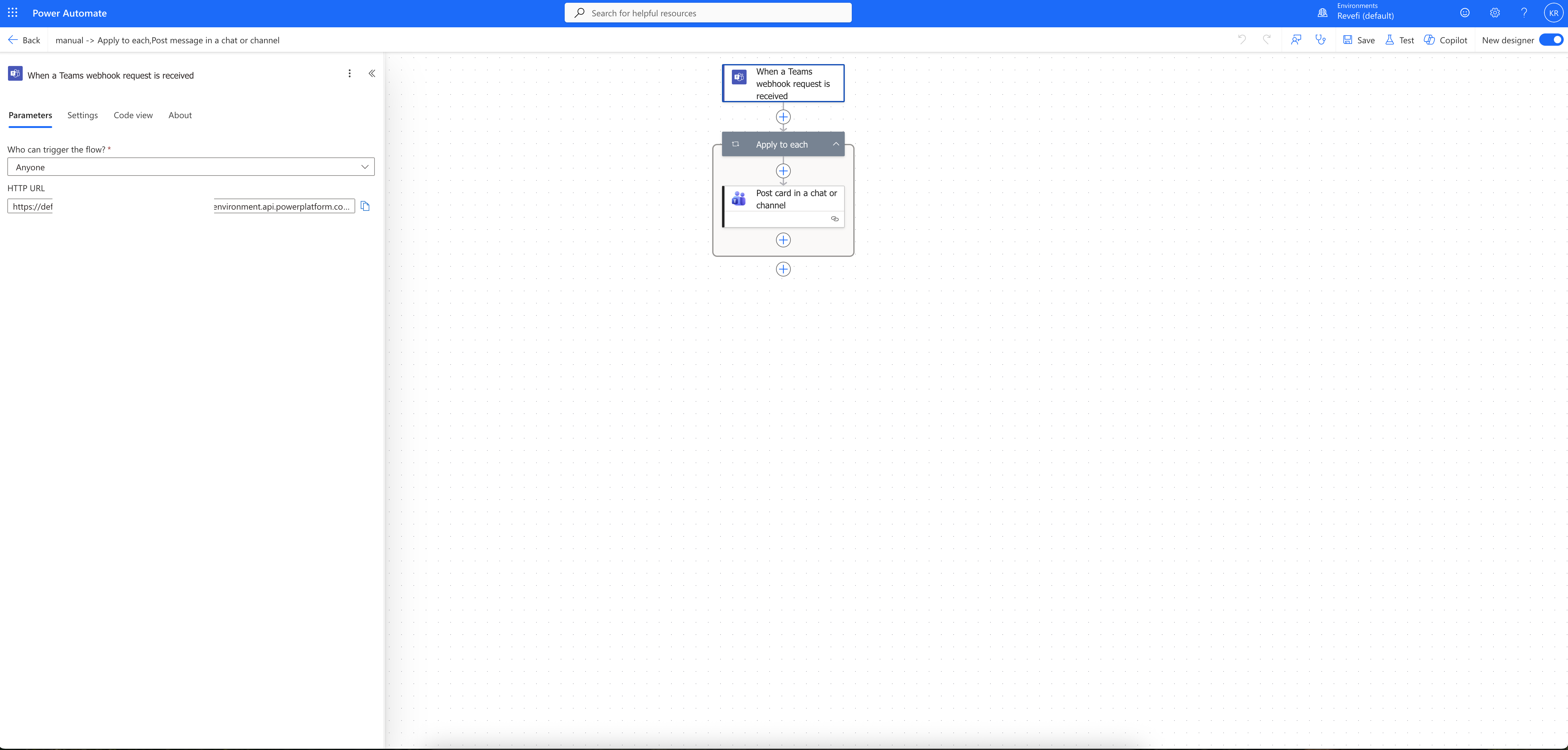
- The above step will open the Power Automate editor.
- For the webhook, please choose "Anyone" for "Who can trigger the flow?".
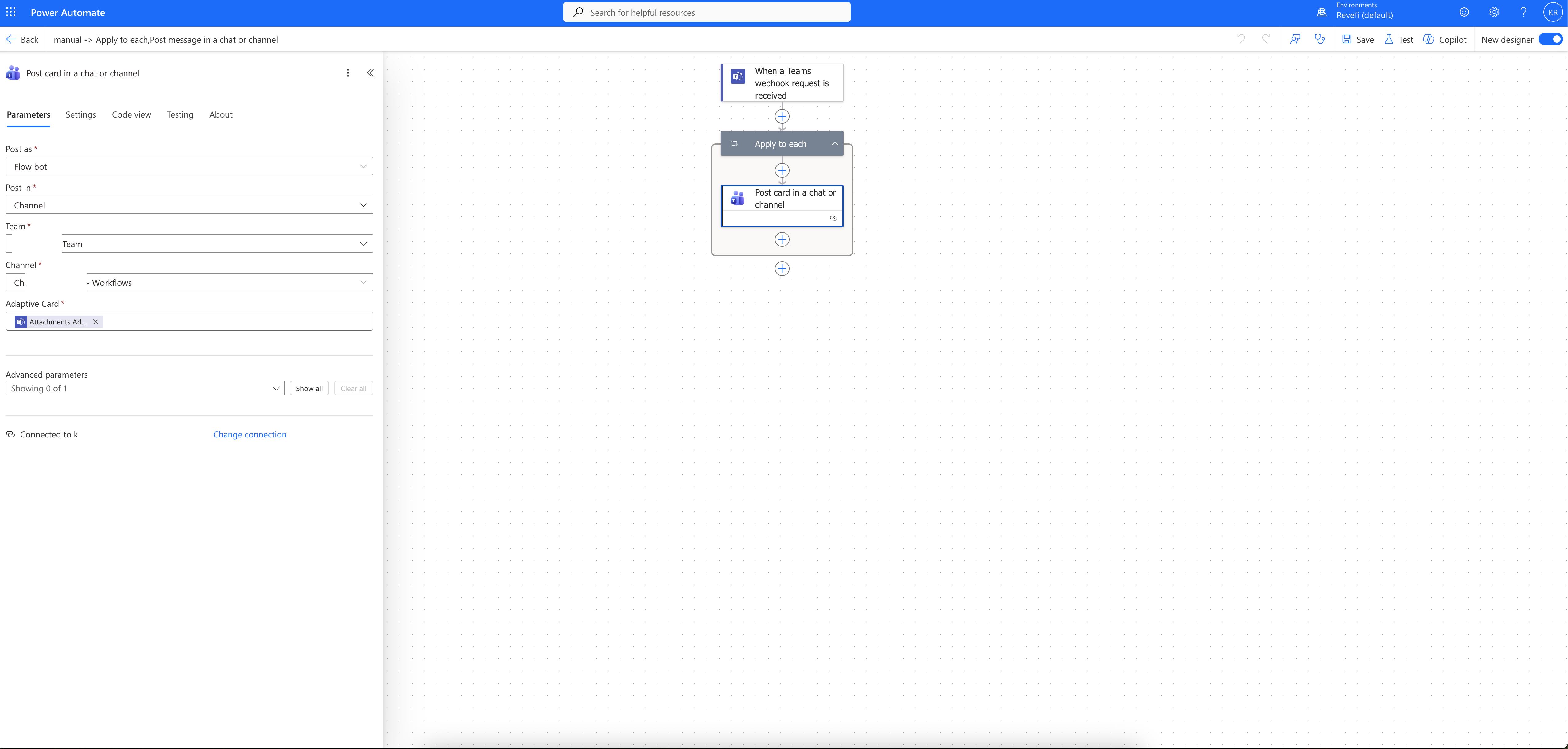
- Add a for loop to display the incoming message in the Channel you want to receive the message (see following image).
- Save the flow. Please note the generated webhook URL. This URL is needed in Connecting to Revefi steps.
Microsoft 365 Connectors
Microsoft 365 Connectors (previously called Office 365 Connectors) are nearing deprecation, and the creation of new Microsoft 365 Connectors will soon be blocked.
Follow the instructions on Microsoft Teams documentation to create an incoming webhook for Revefi.
Connecting to Revefi
On Revefi, go to "Connections" page and select "Microsoft Teams".
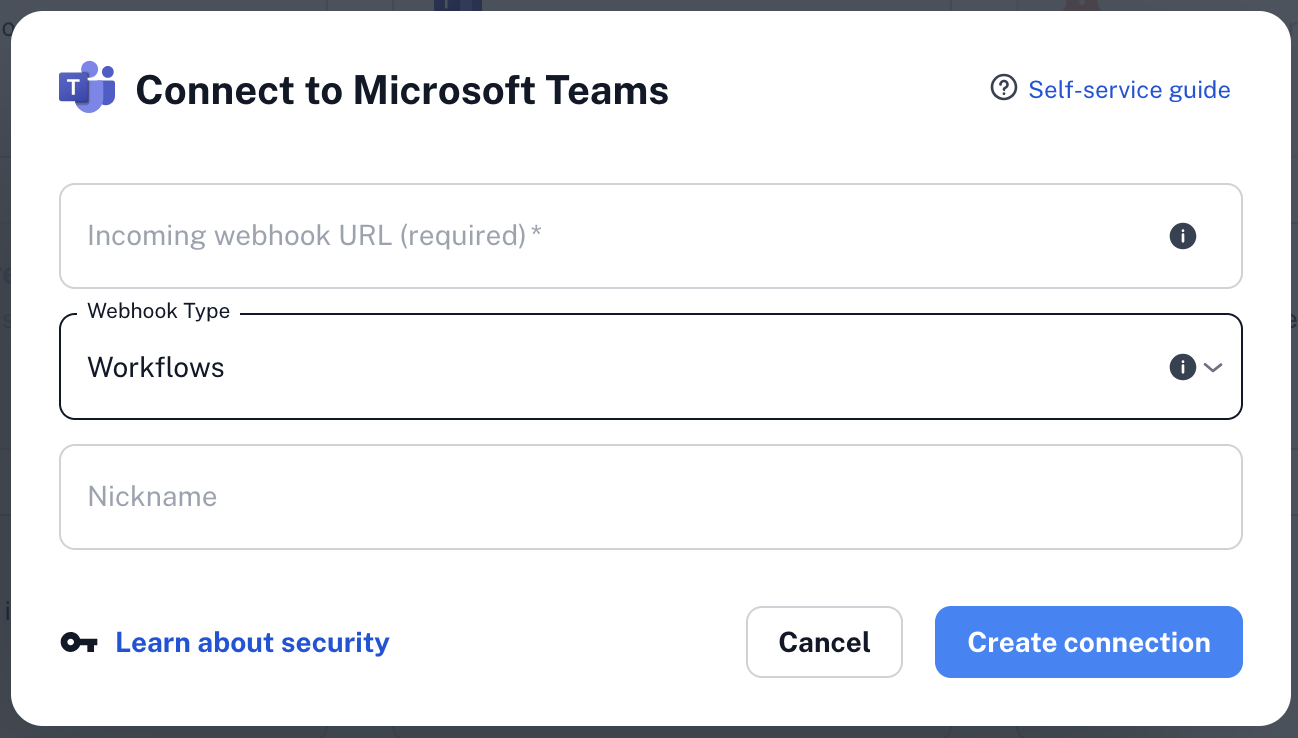
- Enter the webhook URL that you created in the above steps.
- Select "Workflows", if you are using Teams Webflow, otherwise select "Classic Webhook"
- Choose a friendly name for the connection,
- Click "Create Connection" to create the connection.
Updated 8 months ago