
Automatic Warehouse Management: Schedule Overrides
Lock in a specific warehouse size for recurring time windows on Revefi auto-managed warehouses.
Schedule Overrides
When Revefi auto-manages a warehouse, it generates a schedule based on usage patterns. Use Schedule Overrides to lock in a specific warehouse size for recurring time windows. During an override window, Revefi applies the exact configuration you specify instead of following its auto-generated schedule. Outside those windows, Revefi resumes normal auto-management.
Schedule overrides are recurring — they repeat on the same days and times every week until you delete them. Use them for predictable, repeating workloads where you want direct control over warehouse sizing during specific hours. For example: "From Monday to Wednesday, 12:00 AM to 2:00 AM, keep the size at Large."
Schedule overrides are configured per warehouse from the warehouse's analysis report.
How Schedule Overrides Work
When Revefi generates and applies a schedule for a warehouse, any active schedule overrides take precedence during their defined windows. Revefi sets the warehouse to the exact size and cluster configuration you specified for those hours, then returns to the auto-generated schedule for the remaining time.
If you have Sizing Constraints also defined for this warehouse, schedule overrides take precedence over them during the override window. Adjusting these settings may impact the performance gains and cost savings identified in the analysis report. Monitor your warehouse utilization after applying them.
When to Use Schedule Overrides
- A recurring batch job that runs the same days/times every week and needs a larger warehouse.
- Business-hours windows where a warehouse should be a specific size to meet SLA requirements.
Creating a Schedule Override
Navigate to Warehouses in the left sidebar, select the warehouse, and open its analysis report. Under the Schedule Overrides section, click Add Override.
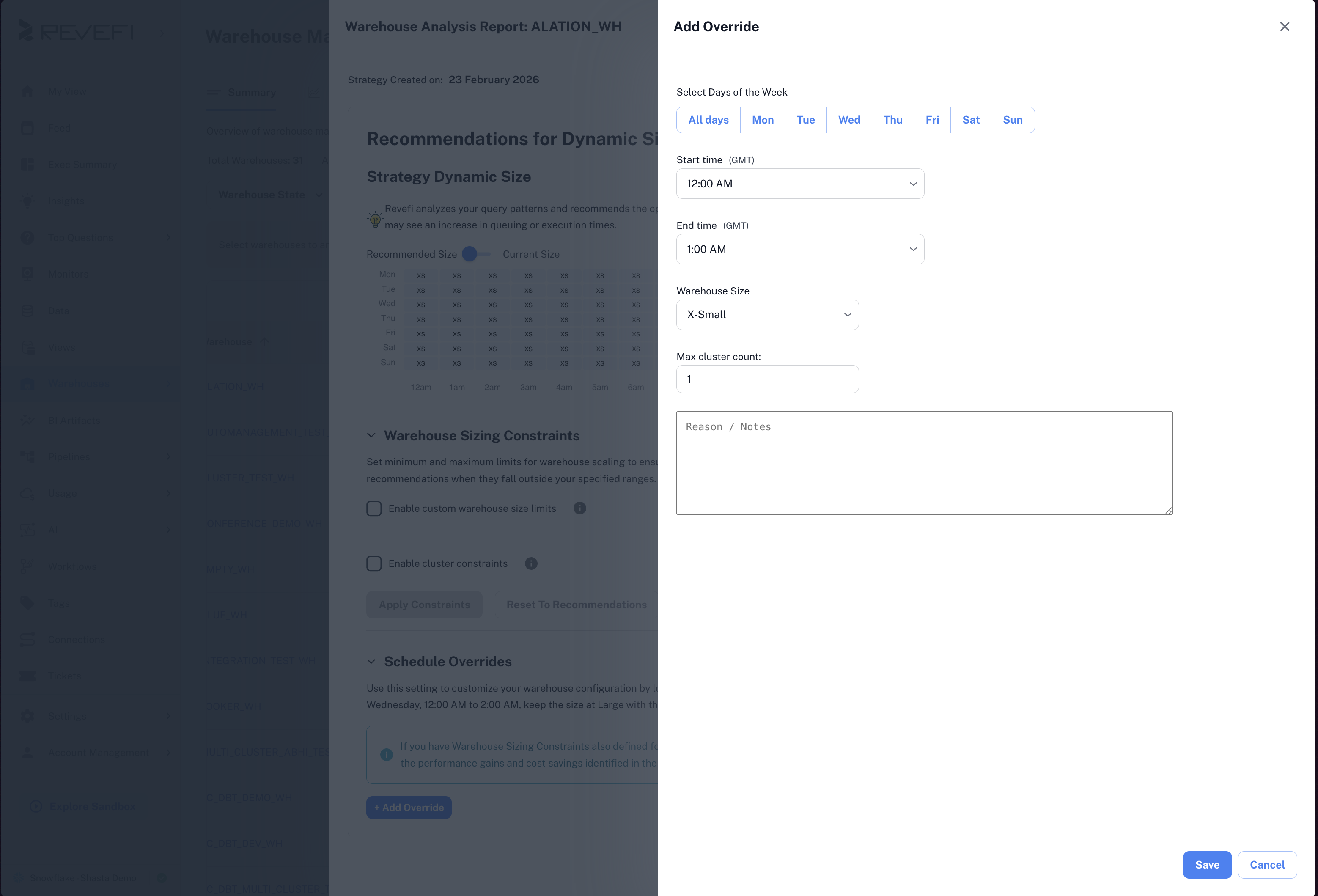
Configure the following:
- Days of week — Select one or more days (Monday through Sunday) when the override should apply.
- Start time / End time — The time range for each selected day, in UTC (e.g., 00:00 – 02:00). Times use 24-hour format.
- Warehouse size — The target size during the override window. Available sizes range from
X-Smallto6X-Large. - Max cluster count — For multi-cluster warehouses, the maximum number of clusters to allow during the window.
- Notes — Optional explanation visible to your team (e.g., "Nightly ETL batch job").
Click Save. The override repeats automatically every week on the selected days and times until you delete it.
All times are in UTC. Make sure to convert from your local timezone before setting the window.
Viewing Schedule Overrides
Existing overrides are listed in the Schedule Overrides section of the analysis report. Each override displays:
- The days of the week it applies to (e.g., Mon–Tue)
- The time range (e.g., 9:00 AM – 5:00 PM)
- The warehouse size and cluster configuration
- Any notes you added
Editing or Deleting a Schedule Override
To edit an override, click it in the list and update the fields. To delete, click the trash icon next to the override. Deleted overrides stop applying from the next occurrence.
How Schedule Overrides Interact with Other Settings
- Constraints — Schedule overrides take precedence over sizing constraints during the override window. Outside the window, constraints continue to bound the auto-generated schedule as usual.
- Multiple overrides — You can create multiple schedule overrides for the same warehouse to cover different time windows (e.g., one for weekday mornings and another for weekend evenings).
Frequently Asked Questions
Do schedule overrides affect the analysis report recommendations?
The overrides are applied on top of the generated schedule. The analysis report still shows the original recommendations, and overrides are layered over them during the specified windows.
What happens if I change a constraint while an override is active?
The override still takes precedence during its window. The updated constraint applies to all other hours outside the override windows.
Can I set overrides for different sizes on overlapping time windows?
Each override should cover a distinct time window. If two overrides overlap, the most recently created one takes precedence.
Updated 8 months ago