
Qlik Enterprise Manager
Revefi integrates with Qlik Enterprise Manager to discover the Qlik Replicate and Qlik Compose tasks that load data into your warehouse.
Overview
Revefi connects to the Qlik Enterprise Manager (QEM) REST API with read-only requests. It discovers:
- Servers registered in Enterprise Manager (Qlik Replicate and Qlik Compose servers)
- Tasks on each server, including the task type, source and target endpoints, assigned tags, and task settings (for example, whether a Replicate task runs a full load or applies ongoing changes)
Revefi supports the following Enterprise Manager releases:
- May 2026
- November 2025
- May 2025
- November 2024
Qlik Enterprise Manager Setup
Generate a personal access token
Revefi authenticates with an OpenID Connect personal access token. Personal access tokens are only available when Enterprise Manager is configured to sign users in with OpenID Connect.
Revefi recommends generating the token for a dedicated user (for example,
revefi) that has read-only (Viewer) access to the servers and tasks you want Revefi to monitor. Revefi only reads from Enterprise Manager and never changes servers or tasks.
- Sign in to the Qlik Enterprise Manager console as the user Revefi will connect as.
- Generate a personal access token for that user. See Qlik's documentation for details.
- Copy the token and keep it in a secure place (like your password manager).
Allow network access (if required)
Enterprise Manager is self-hosted, so Revefi must be able to reach it over the network. If access to your Enterprise Manager host is restricted, allow inbound connections from Revefi's static IP addresses (44.225.56.55, 44.227.173.42, 52.10.141.35).
Revefi Setup
- Within the Revefi app, select the Connections tab on the left menu.
- Find the Qlik Enterprise Manager card (listed under Data replication) and click on it.
- Enter the following details:
| Field | Required | Description |
|---|---|---|
| Enterprise Manager URL | Yes | The scheme and host where Enterprise Manager is served, plus a port if it is not on the default. Do not include a path. For example, https://qem.example.com:443. |
| Personal access token | Yes | The token generated in the previous step. |
| Version | Yes | The Enterprise Manager release you run. |
| Nickname | No | A name for this connection in Revefi. Defaults to Qlik Enterprise Manager. |
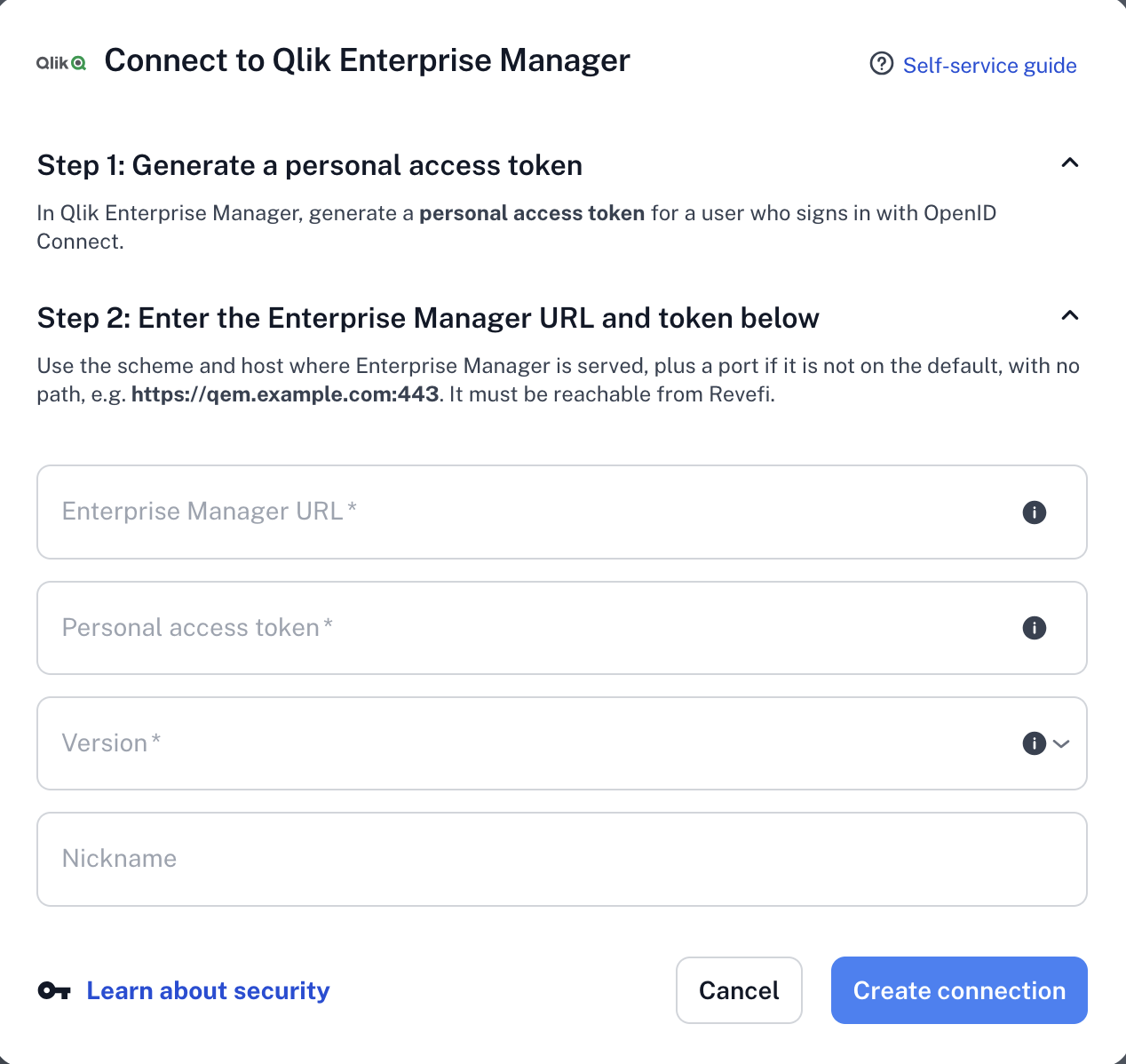
- Click on the "Create connection" button to complete the connection setup.
Troubleshooting Issues
- Validation failed. Qlik Enterprise Manager rejected this token.
- Validation failed. Revefi cannot use this URL.
- Validation failed. Revefi could not log in to Qlik Enterprise Manager at that URL.
- No tasks discovered yet
Updated about 9 hours ago
What’s Next
Revefi will use this connection to discover the servers and tasks managed by your Qlik Enterprise Manager. Discovery runs hourly, so within an hour of completing the setup above you will see your tasks, grouped by server, under Pipelines > Qlik Enterprise Manager in the Revefi UI.